
Run an experiment
An experiment runs a panel of synthetic shoppers against two versions of one page — your current page and a new version you want to test — and files a verdict on which converts better. You supply both versions. Squoosh does not write the new version for you; it tests the real change you made.
This page walks through the wizard from start to launch.
Before you start
Two things must be true before Squoosh will launch a run:
- Your synthetic shoppers are calibrated. Calibration builds the panel of shoppers that runs your test. Until it's done, the launch button is disabled and the wizard shows a Set up shoppers link. See Calibrate synthetic shoppers.
- Your workspace has enough credits. Each run costs credits, and the wizard shows the exact cost before you launch. If your balance is short, the wizard says so, and you can top up. See Credits and cost.
You also need the URL of version B, the new page you want to test. Squoosh tests the page you point it to; it does not generate a variant.
Open the wizard
- In the sidebar, click Experiments.
- Click New experiment.
The wizard opens as a single sheet with numbered sections. Fill them top to bottom.
Target
Section 01 Target is where you name the experiment and enter the page you're testing against.
- In Control page (A), enter the URL of your current page. A valid URL shows Looks valid.
- In Experiment name (optional), type a name that describes what you're testing, for example
PDP layout v2 vs current. Leave it blank and Squoosh names the experiment for you from the page and goal.
Control page (A) is your current, live version, the baseline every result is measured against.
Variant
Section 02 Variant is where you tell Squoosh how to reach version B. Squoosh does not generate the variant. You bring it, and Squoosh tests your real change.
Under How do you ship variants?, choose one mode:
| Mode | Use it when |
|---|---|
| Two URLs | Version B lives at its own web address. This is the default and the verified path. Use it unless you have a reason not to. |
| VWO / Optimizely / AB Tasty / Convert | Your variant shows on the same URL through a client-side testing tool. |
| Feature flag | Your variant is selected on your server by a flag value (LaunchDarkly, Statsig, Split, or a custom cookie, header, or query parameter). |
For Two URLs:
- Confirm the A · Control card shows the control URL from the Target section.
- In Variant page (B), paste the URL of the new version. It must be a valid URL and must differ from the control. When it's accepted you'll see Looks valid · differs from control.
Note
The VWO / Optimizely / AB Tasty / Convert and Feature flag modes are verified for Convert, VWO, Optimizely and server-side flags; AB Tasty is still in beta. See How you ship variants for what each vendor needs (Optimizely, for example, must have force parameters enabled). If you run variants through AB Tasty, contact support@squoosh.ai to validate your first run.
Goal and traffic
Section 03 Goal & traffic sets what you're optimizing and how shoppers arrive.
- Under Primary goal, choose Add to Cart (default) or Checkout, the conversion the experiment measures.
- Under Traffic profile, choose Organic / Direct (default) or Paid Ad (PDP), where shoppers enter from.
Traffic profile sets the source and intent of your shoppers. It is not a split between the two versions; there is no traffic-split control.
Review and launch
Section 04 Review & launch summarizes the run and lets you edit the shopper tasks.
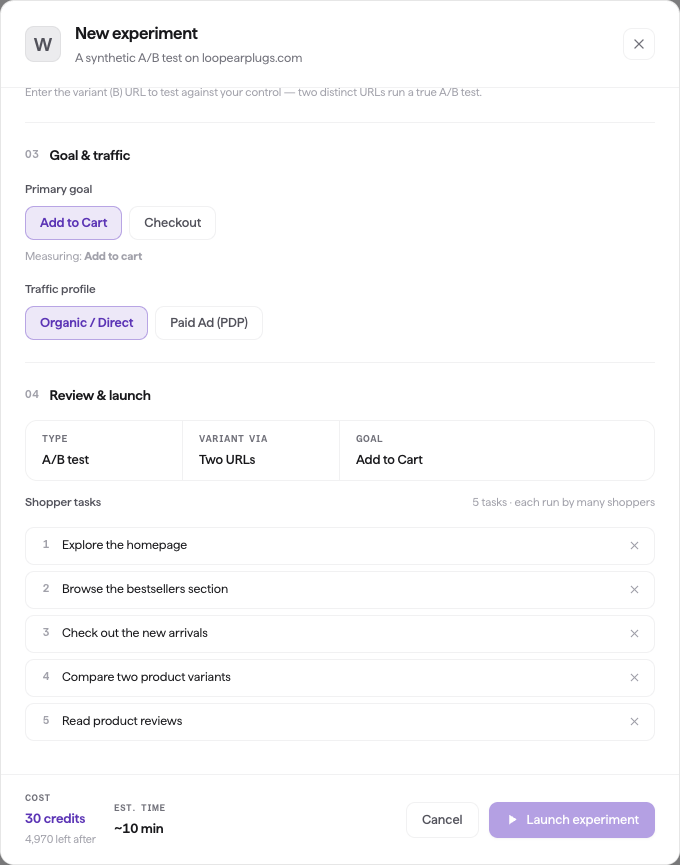
Review & launch: the run summary, the shopper tasks, and the cost and estimated time.
- Check the summary grid: Type, Variant via, and Goal.
- Review the Shopper tasks, the shopping objectives each shopper attempts, drafted for you while you filled the form. Edit any task inline, or remove ones you don't want. At least one task is required. The list you see is the list that runs.
- Confirm the cost line — Cost in credits, the estimated run time, and the balance left after — then click Launch experiment.
Every run uses auto-stop — it ends early once a clear winner holds at 80% confidence, but never before 40% of the panel finishes. It's always on; there's nothing to configure. See Lifecycle and auto-stop.
If the launch button is disabled, one of the gates in Before you start isn't met: shoppers aren't calibrated, the variant URL is missing or matches the control, or your credit balance is short.
After you launch
Squoosh reserves the panel, warms up both versions, and moves you to the live experiment page. The results fill in as the first shoppers enter the funnel, so you can watch the run build.
When the run finishes, or auto-stops once a winner holds, read the verdict at the top of the experiment page: the outcome, the lift, and the confidence. "Keep the original" is a real outcome; a change that costs conversions is worth knowing before you ship it. There is no ship or deploy button. Rolling out the variant is your call.
See How Squoosh decides a winner and Reading lift and confidence for how to read the result.
Credits and cost
Credits are what you spend to run tests, and your workspace shares one balance. An A/B test costs 30 credits; a Conversion Report costs 10 credits. The sidebar shows N tests left: how many A/B tests your current balance covers (your balance ÷ 30). The wizard shows each run's exact credit cost before you launch and the balance you'll have after.
Your plan caps how many tests you can run per month and how many properties you can have. Hitting a cap prompts you to upgrade. To add credits or change your plan, contact the Squoosh team at support@squoosh.ai; self-serve billing isn't available yet.